Preserve the Original Prompt First
Record the exact wording on the error screen, the timestamp, and the product used. Keep web restriction banners, terminal connection errors, and billing errors separate rather than summarizing them as "it stopped working." Redact emails, billing details, and session IDs before sharing screenshots.
Triage by Error Layer
When you see a rate limit prompt, check in-product usage first; when you see an explicit account suspension notice, open the official appeals guide; when domain connections time out, inspect split-routing, dual-stack exits, and service reachability. Passing a network probe cannot lift an account suspension.
Separate Organization and Personal Accounts
An organization workspace restriction may differ from your personal account status. Check the specific entity named after signing in rather than assuming an organization review means your personal account is permanently terminated.
How Diagnostic Results Fit In
Environment diagnostics provide technical context but cannot reverse-engineer internal ban reasons from an IP, language tag, or cookie name. Keep reproducible network symptoms separate from official account notices.
Common Real-World Scenario
For example, if your terminal times out while your browser can open the login page, it simply means the two network paths behave differently. Record the target host, runtime environment, and exact error separately.
Triage one failure using its exact message
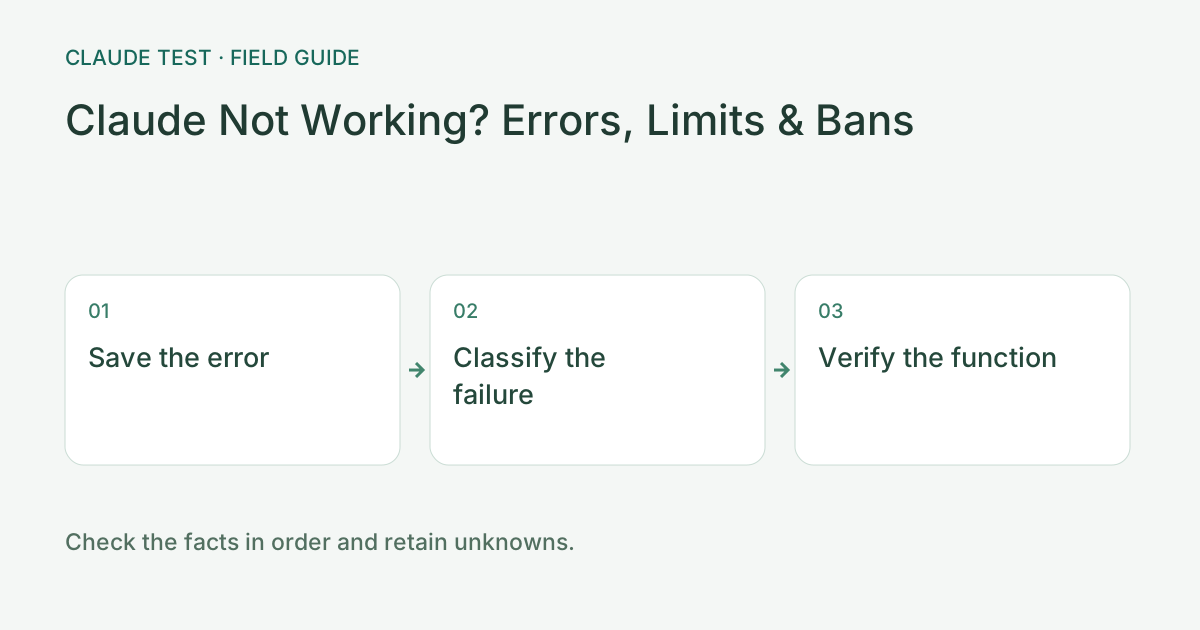
Save the exact error and identify where it occurred: Claude web, Claude Code, the API, or an organization workspace. If you can sign in but see a usage-limit message, check its reset notice. For timeouts or a single failing domain, investigate routing and DNS. Use the account-restriction workflow when an explicit restriction notice is present.
For example, if the browser works but a terminal times out, inspect proxy environment variables, DNS, and connectivity on the machine running that terminal. A normal browser result describes that browser only; WSL or a remote server may use a different route. Keep the terminal error rather than replacing it with a browser check result.
Retest the same product and destination under comparable conditions, changing one setting at a time. Keep the before-and-after result and original messages. If a timeout becomes an authentication or permission error, change the investigation accordingly. Check the official status page and account notices as separate evidence.
References & Freshness
The above is independent diagnostic guidance with no access to Anthropic internal risk controls. Policies, UIs, and support workflows may change—always verify against official effective dates and your account portal.